

How To Delete Emails In Bulk On Iphone
Most users have hundreds (if not thousands) of read, seen and unread Email Messages laying in their Email Accounts. Luckily, it is possible to Bulk Delete Emails on iPhone and reduce the clutter in your Email Account.
Bulk Delete Emails on iPhone
Before heading to the steps to Bulk Delete Emails on iPhone, it is a good practice to double check the Inbox for any important Emails that you may want to keep.
A good way of doing this is to archive emails that you want to keep or move important Emails to a New Folder, using steps as provided later in this article.
Once you are ready, follow the steps below to Bulk Delete Emails on iPhone and start fresh with a clutter free Inbox (hopefully it stays so!).
1. Open theMail App on your iPhone.
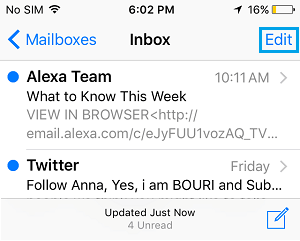
2. Next, tap on theEdit option located at the top right corner of your screen.
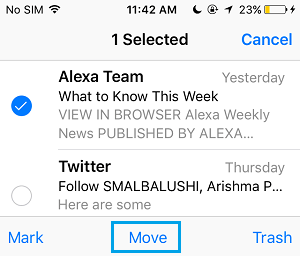
3. Next, select theFirst Email and you will see the options to Mark, Move and Trash the selected Email in the bottom Menu.
4. Press & Hold your finger on the Move option and at the same time clear the First Email that you had selected in step 3.
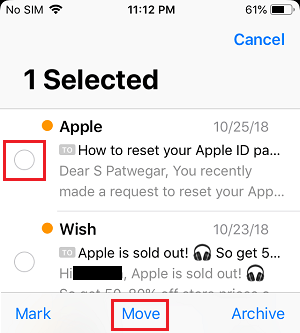
5. Now, release the Move option and you will immediately see Multiple Emails selected. Simply, tap on the Trash icon to move all the selected Emails to Trash.
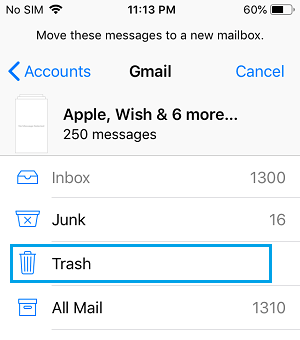
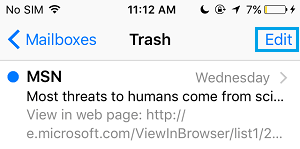
After this, you can either wait for the Trash to empty at its scheduled time (30 days) or immediately delete all the Emails from Trash by tapping onTrash Icon > Edit option
On the next screen, tap on Delete All option in the bottom menu.
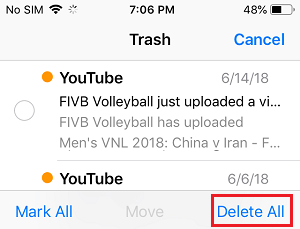
Once you tap on Delete All, all the Emails in the Trash will be deleted from your iPhone.
Move Important Emails to Another Folder
Before Bulk Deleting Emails From iPhone, it is always a good idea to create a New Folder and move some emails that appear important or worth a second look to this temporary folder.
Later on you can review these Email Messages and decide whether to delete or save them.
1. Open theMail App on your iPhone
2. Tap on Mailboxes from the upper left corner of your screen.
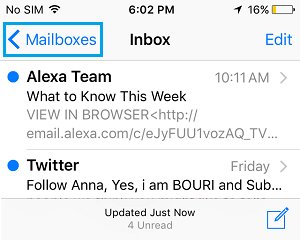
3. Next, tap onEdit >New Mailbox option that appears when you tap on Edit (See image below)
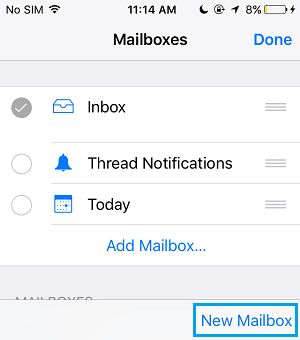
4. On the Edit Mailbox screen, type a Name for the New Folder and tap on Save.
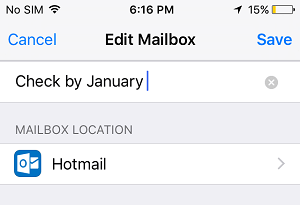
It is important to give this New Folder a descriptive name, or else it can end up living on your iPhone without any action from your side.
5. After creating New Folder, go back to your Inboxand tap on the Edit button.
6. Select the Emails that you want to move to New Folder by tapping on each Email. Once you have selected the Emails, Tap on Move button in the bottom menu.
7. On the next screen, tap on the New folder that you had created (See image below)
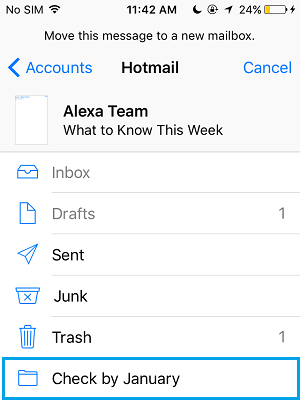
All the selected emails will be moved to the new folder that you had just created for this purpose.
Once you have moved selected Email Messages to this New Folder, you can safely go ahead with the steps to Bulk Delete All Emails on iPhone.
- How to Recover Deleted Emails on iPhone and iPad
- How to Change Default Email Address On iPhone
How To Delete Emails In Bulk On Iphone
Source: https://www.techbout.com/delete-all-emails-on-iphone-ipad-9706/
Posted by: carpenterficholl90.blogspot.com
0 Response to "How To Delete Emails In Bulk On Iphone"
Post a Comment